

Multi-repository projects
Combine multiple Git repositories into one Mintlify site, with a dedicated URL path for each source repo's content and navigation.
Use a multi-repository project when one site needs content from more than one Git repository. When you configure multiple repositories as sources for one project, content from each repository has its own URL path.
For example, you can combine separate repositories for product documentation, API reference, and SDK guides into one site:
docs.example.com/product
docs.example.com/api
docs.example.com/sdks
One source in a multi-repository project can use a root URL path (/). Mintlify serves content from that source at the root of the site with no path prefix, while other sources are at their configured URL paths. Use a root URL path if one repository holds the main documentation and other repositories add sections like an API reference or SDK guides.
How multi-repository projects work
Section titled “How multi-repository projects work”Each repository in a multi-repository project has its own:
- Git provider connection
- Branch
- Optional content directory
- URL path
docs.json
During deployment, Mintlify reads each repository and combines the configured sources into one site. Each source appears under its configured URL path.
One repository acts as the base source for the project. Its docs.json is the root docs.json and controls site-level configuration, including theme, colors, logo, site name, top-level navigation, integrations, SEO, and other top-level fields. Every other source contributes its own navigation and content under its configured URL path, plus any variables that the base source doesn't define. The first repository you configure is the base source by default, and you can change which source is the base at any time.
Requirements
Section titled “Requirements”- An Enterprise plan
- Admin access to your Mintlify project
- A
docs.jsonfile in each repository source - All repository sources must use the same Git provider (all GitHub, all GitLab, or all Bitbucket). Adding a source from a different provider removes all existing sources of the other type
Configure multiple repositories
Section titled “Configure multiple repositories”Open Git settings
Navigate to Git settings in your dashboard.
Add another repository
Click Add repository.
Configure the repository source
Select the repository, branch, and any required Git provider-specific fields (GitHub, GitLab, or Bitbucket).
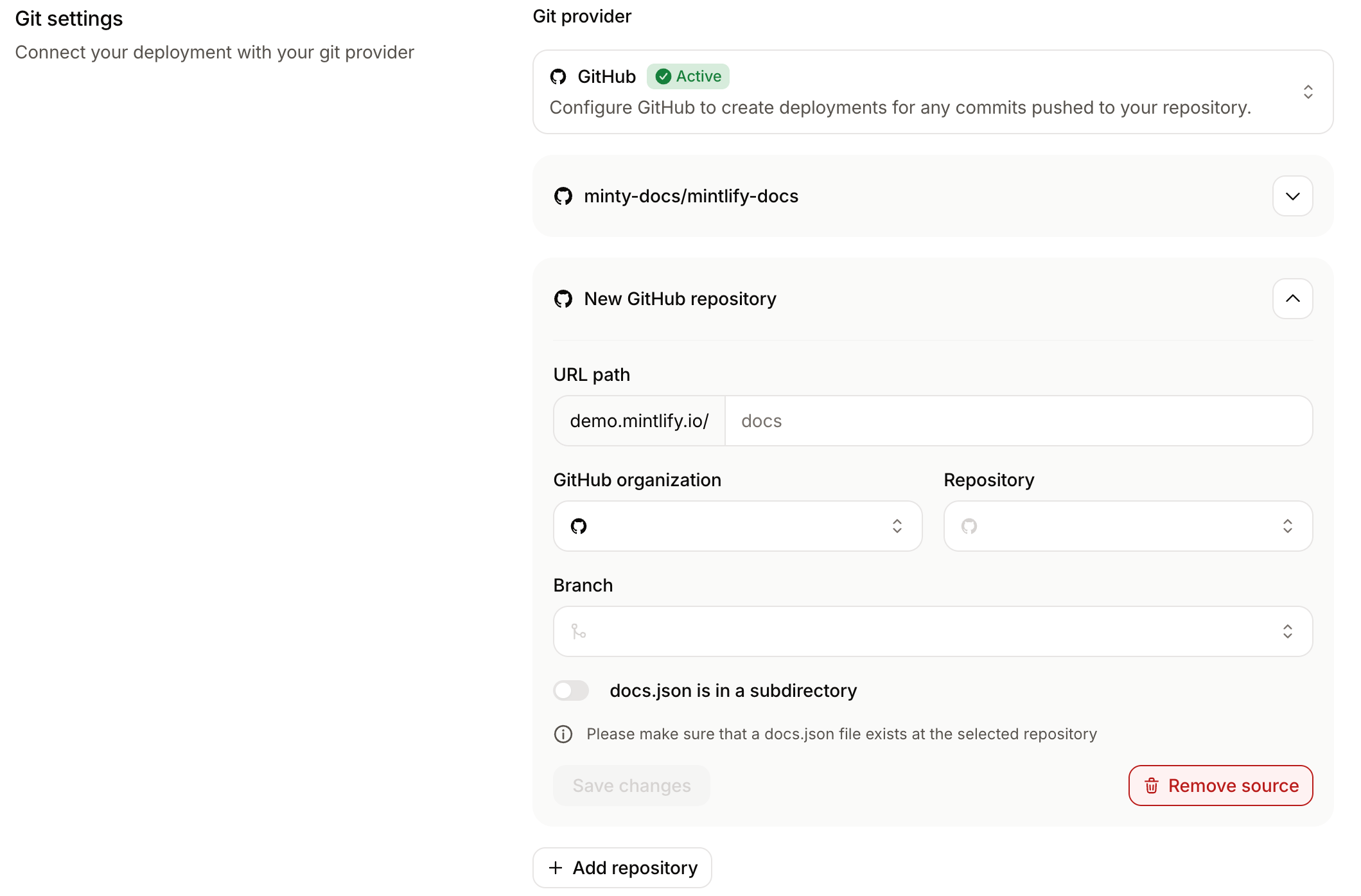
For GitHub sources, the Mintlify GitHub App must have access to the repository. For GitLab sources, provide the project ID and an access token with the
apiandread_apiscopes. For Bitbucket sources, connect your Bitbucket account through OAuth and enable the repository. See Bitbucket for setup instructions.If the repository's
docs.jsonis in a subdirectory rather than the root, enable docs.json is in a subdirectory and enter the path to that directory.Set the URL path
Enter a URL path for the repository source.
The URL path determines where the content from that repository appears on your docs site. For example, a URL path of
apiserves the content underdocs.example.com/api.To serve a source at the root of your site with no path prefix, leave the URL path empty or set it to
/. Only one source per project can use the root URL path.Save changes
Click Save changes. Mintlify saves the configuration and queues a deployment of the combined site.
Change the base source
Section titled “Change the base source”The base source provides the site-wide configuration for your multi-repository project. Change the base source when you want a different repository's docs.json to control settings like theme, colors, site name, and top-level navigation.
Open Git settings
Navigate to Git settings in your dashboard.
The current base source shows a Base badge next to the repository name.
Set a new base source
On the repository you want to use as the base, click Set as base.
Mintlify updates the base source immediately and queues a deployment using the new base repository's
docs.jsonfor site-level configuration.
Example repository layout
Section titled “Example repository layout”In this example, each source has its own repository and its own docs.json.
acme/product-docs
├── docs.json
├── overview.mdx
└── guides/

acme/api-docs
├── docs.json
├── introduction.mdx
└── reference/

acme/sdk-docs
├── docs.json
├── quickstart.mdx
└── javascript/
Configure each repository with a URL path:
| Repository | URL path | Published path |
|---|---|---|
acme/product-docs |
product |
/product |
acme/api-docs |
api |
/api |
acme/sdk-docs |
sdks |
/sdks |
Navigation behavior
Section titled “Navigation behavior”Mintlify combines the navigation from each repository into one site navigation. Each repository source becomes a top-level product section under the configured URL path.
The name of each product section comes from the name field in the corresponding repository's docs.json. For example, if a repository's docs.json sets "name": "API Reference", its product section appears as "API Reference" in the combined navigation.
Keep each source's navigation scoped to that repository. For example, pages in the API repository should reference only files that live in the API repository. Similarly, pages in the SDK repository should reference only files that live in the SDK repository.
Nested navigation.products configurations are not supported inside individual source repositories.
Link between sources
Section titled “Link between sources”Relative Markdown links can't resolve across repositories because each source only sees its own files at build time. To link from one source to a page in another source, use a root-relative URL path that includes the destination source's URL path:
See the [API reference](/api/reference/authentication) for details.In this example, /api is the URL path configured for the API repository source. The link resolves at the published site level to docs.example.com/api/reference/authentication.
Do not use full https:// URLs for internal cross-source links. Root-relative paths keep previews and custom domains working correctly.
Avoid path conflicts across sources
Section titled “Avoid path conflicts across sources”When one source uses the root URL path, its pages can share the same final URL as pages in another source. If two sources produce the same page path, Mintlify serves the page from the source with the more specific URL path and logs a conflict warning in the deployment update. To avoid conflicts, keep filenames in the root source from overlapping with URL paths configured for other sources.
Variables across sources
Section titled “Variables across sources”Mintlify merges the variables defined in each source repository's docs.json into one set for the deployed site. Pages in any source can reference any merged variable with {{variableName}} syntax.
When more than one source defines the same variable key:
- The base source's value always takes precedence.
- If two non-base sources define the same key with different values and the base source doesn't define it, Mintlify uses the value from the source configured first. Mintlify also logs a deployment warning that prompts you to update the conflicting names in the non-base sources.
Reference navigation from another source
Section titled “Reference navigation from another source”Use sourceRef to place another repository's navigation at a specific location in the base source's docs.json. If you don't use sourceRef, Mintlify adds each repository as a separate top-level product section.
Requirements
Section titled “Requirements”- Configure the referenced repository as a source in the same multi-repository project.
sourceRefvalues must include at least two path segments, likeowner/repo. Mount paths and repository names by themselves are not supported.- For GitLab repositories in nested subgroups, use the full path, like
group/subgroup/repo. You can shorten the value to the last two segments, likesubgroup/repo, unless two sources share the same trailing segments. When two sources share the same trailing segments, use the full path for each.
- For GitLab repositories in nested subgroups, use the full path, like
- The referenced source must define a similar navigation pattern as the main source. For example, a
sourceRefinsideanchorsrequires the referenced source to definenavigation.anchors. sourceRefentries cannot form a cycle. A source cannot reference itself, and two sources cannot reference each other.sourceRefmust appear inside a navigation array. It is not valid at the top level ofnavigation.
Add a sourceRef entry to a navigation array in the base source's docs.json. The value must be the repository's owner/repo identifier or its full group path.
{ "sourceRef": "acme/api-docs" }For a GitLab repository in a nested subgroup, use the full path:
{ "sourceRef": "acme/platform/api-docs" }Mintlify supports sourceRef inside anchors, tabs, groups, pages, products, menu, and arrays under navigation.global.
When you place sourceRef inside a tab's menu array, Mintlify replaces the entry with the menu items the referenced source declares under navigation.groups[*].menu. Mintlify then prefixes each item's page paths with the referenced source's URL path. If the referenced source doesn't define any menu items under navigation.groups, the deployment fails.
For example, to combine anchors from multiple repositories into a single anchor navigation:
{
  "navigation": {
    "anchors": [
      {
        "anchor": "Guides",
        "pages": ["quickstart"]
      },
      {
        "sourceRef": "acme/api-docs"
      }
    ]
  }
}
If acme/api-docs defines its own navigation.anchors, Mintlify replaces the sourceRef entry with those anchors and prefixes their paths with the referenced source's URL path.
Removing a repository source
Section titled “Removing a repository source”You can remove a repository source from the Git settings page in your dashboard. When only one repository source remains, Mintlify removes the source URL path and treats the remaining repository as the root source for the project.