

Use the assistant
Open the assistant with keyboard shortcuts, highlighted text, code blocks, file attachments, or URL parameters. Test assistant behavior in local preview.
You have multiple ways to start a conversation with the assistant. Each method opens a chat panel on the right side of your docs. You can ask any question and the assistant searches your documentation for an answer. If the assistant cannot retrieve relevant information, it responds that it cannot answer the question.
Use the assistant in local preview
Section titled “Use the assistant in local preview”The assistant is available in your local preview when you log in with the CLI. This lets you test assistant behavior, custom instructions in Assistant.md, and responses while developing documentation locally.
- If you haven't already, install the CLI with
npm i -g mint. - Run
mint loginto authenticate. - Run
mint devto start the local preview.
The assistant in local preview uses the same indexed content as your deployed documentation site.
UI placement
Section titled “UI placement”The assistant appears in two locations: as a button next to the search bar and as a bar at the bottom of the page.


Keyboard shortcut
Section titled “Keyboard shortcut”Open the assistant chat panel with the keyboard shortcut Cmd + I on macOS and Ctrl + I on Windows.
URL parameters
Section titled “URL parameters”Open the assistant from any page on your documentation site by adding the ?assistant query parameter to the URL. Use this to deep-link to the assistant from external content like emails, support replies, in-app banners, or onboarding flows.
?assistant: Open the assistant chat panel without sending a message.?assistant=<message>: Open the assistant chat panel and submit<message>as the user's first message. URL-encode the value so spaces and special characters survive the request.
https://yourdocs.mintlify.site/quickstart?assistant
https://yourdocs.mintlify.site/quickstart?assistant=How%20do%20I%20get%20started%3F
Highlight text
Section titled “Highlight text”Highlight text on a page and click the Add to assistant button to open the assistant chat panel and add the highlighted text as context. You can add multiple text snippets or code blocks to the assistant's context.
Code blocks
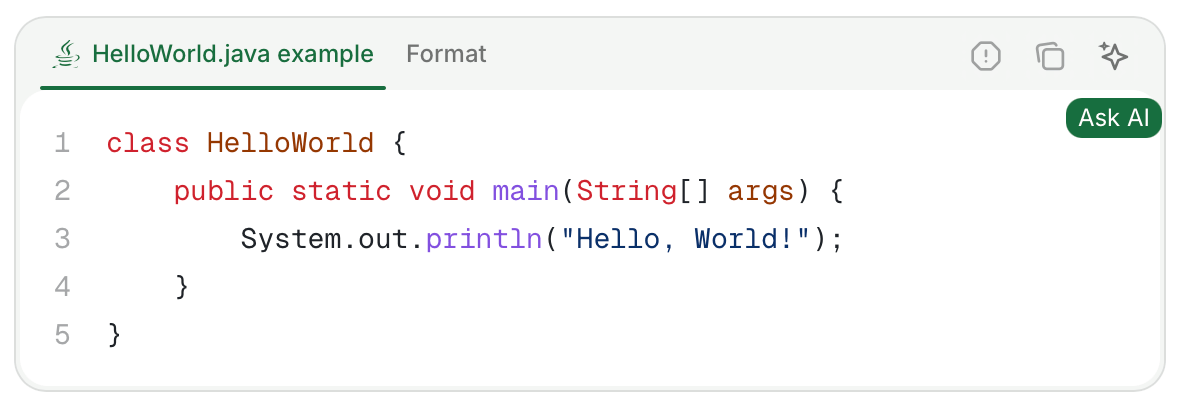
Section titled “Code blocks”Click the Ask Assistant button in a code block to open the assistant chat panel and add the code block as context. You can add multiple code blocks or text snippets to the assistant's context.
File attachments
Section titled “File attachments”Attach files to assistant messages to provide additional context.
Supported file types:
- Images: JPEG, PNG, GIF, WebP, SVG
- Documents: PDF
- Code and text files: JavaScript (
.js,.jsx,.mjs,.cjs), TypeScript (.ts,.tsx), Python, HTML, CSS, Markdown, MDX, JSON, YAML, XML, SQL, CSV, plain text, shell scripts (.sh,.bash,.env), GraphQL, TOML, Go, Rust, Ruby, Java, Kotlin, Swift, C (.c,.h), C++ (.cpp,.hpp), C#, PHP, Lua, R, Scala
Limits:
- Maximum file size: 5 MB per attachment
- Maximum attachments per message: 10
Troubleshooting
Section titled “Troubleshooting”Assistant chat bar not visible
If the assistant UI is not visible in some browsers, you may need to submit a false positive report to EasyList. Browsers that use the EasyList Cookies List, such as Brave and Comet, sometimes block the assistant or other UI elements. The EasyList Cookies List includes a domain-specific rule that hides fixed elements on certain domains to block cookie banners. This rule inadvertently affects legitimate UI components.
Report the incorrect block to EasyList and request removal of the rule. This resolves the issue for all users once the filter list updates.
Assistant blocked on a corporate network, VPN, or firewall
If the assistant loads on personal networks but fails on a work network, VPN, or other restricted network, the block occurs at the network level. Corporate proxies, VPNs, and firewalls sometimes block the outbound requests the assistant needs to make. The chat panel cannot connect even though the rest of the site loads normally.
For readers: Ask your IT team to allow outbound HTTPS requests to the following hostnames from your network. If you can, try the assistant from a personal network to confirm the issue is network-specific.
leaves.mintlify.com: Assistant API*.mintlify.dev: Assistant streaming and supporting services*.mintlify.com: Dashboard, API, and analyticshcaptcha.comand*.hcaptcha.com: CAPTCHA verification for the assistant
For site owners: If a reader reports that the assistant does not load on their corporate network or VPN, treat it as an outbound network block. It is not a problem with your documentation. Point them to the preceding hostnames and suggest that they share the list with their IT team. This allowlist applies to the visitor's device or network. You cannot configure it from your site. If you self-host behind a reverse proxy that overwrites the default CSP, see CSP configuration for the domains to allow.